
SpotPlayer Guide
Register your course license, manage downloads, adjust settings and fix common errors in the SpotPlayer application.
Register a new course
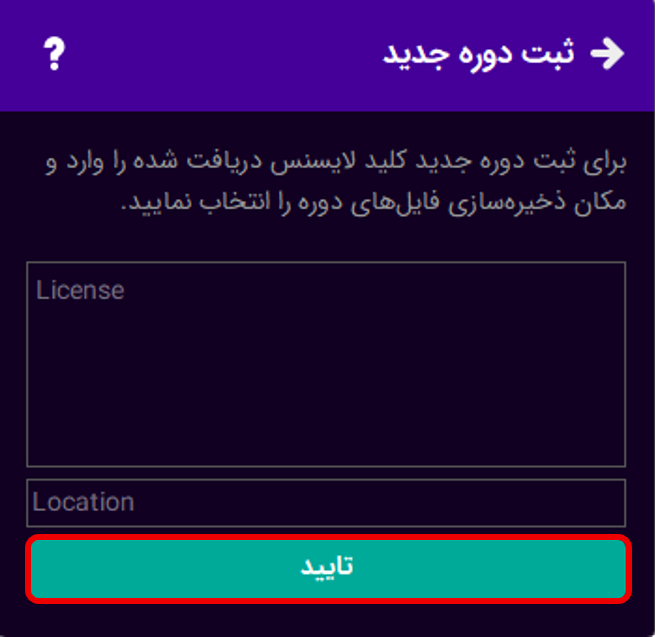
To register a new course in the license field, enter the key and click on the field to select the location where the course files are stored. If you have downloaded the course files separately, move them to the selected folder.
Application settings
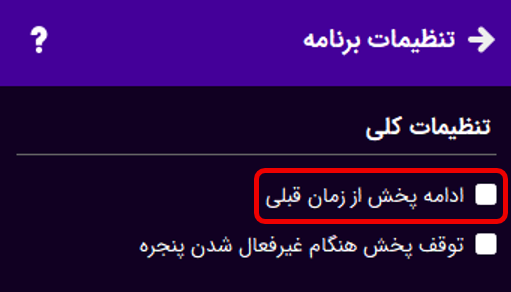
1) Resume playback from the previous position: Enabling this option ensures that video playback resumes from the point where it was last stopped.
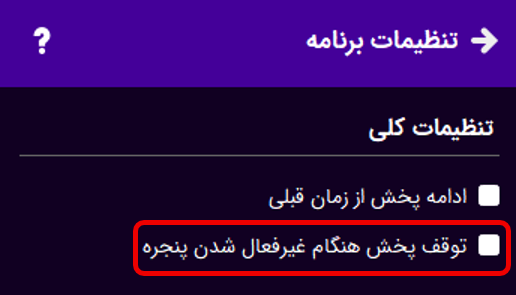
2) Pause playback when the window is inactive: Enabling this option will pause playback when another application becomes active and resume playback when the player becomes active again.
Nighttime Download
If you have access to a low-cost nighttime internet plan or would like files to be downloaded overnight, enable this feature by selecting the start and end times for nighttime downloads. Then, add the files you want to download to the nighttime download list.
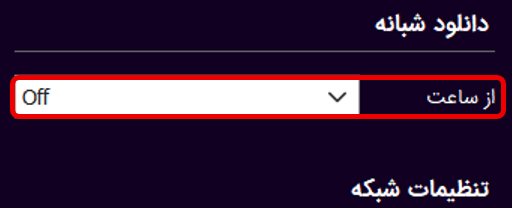
1) From: Determines the time when nighttime downloads will begin.
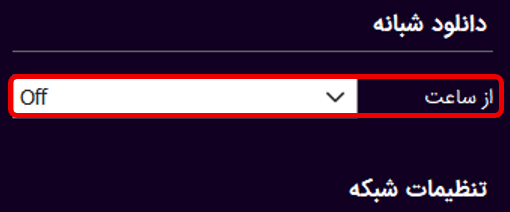
2) Until: Determines the time when nighttime downloads will end.
Note: The application must remain open and running during the scheduled nighttime download period.
Network Settings
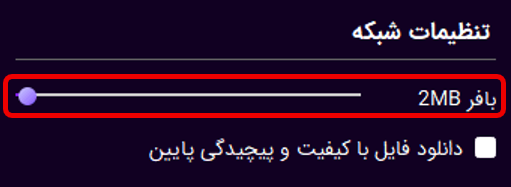
1) Buffer: If you have a slow internet connection, increasing the buffer size can help prevent video playback from stuttering or pausing.
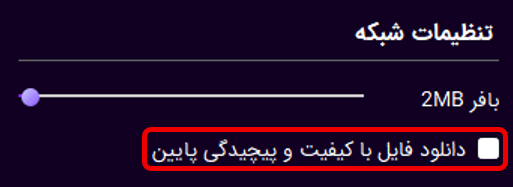
2) Download Low-Complexity File: Enabling this option will download and play the low-complexity version of the file, if available. Enable this option if your device does not have sufficient processing power.
Video Settings
1) Hardware Decoding: This option is available only on Android devices. Enabling it allows the video to be decoded using the device’s dedicated hardware decoder.
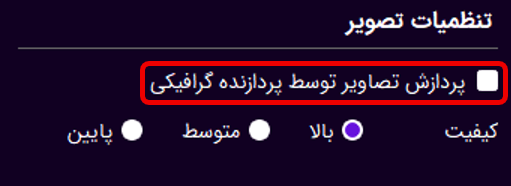
2) GPU Image Processing: Enabling this option allows image processing and rendering to be handled by the GPU, reducing the processing load on the CPU. On Android devices, where GPU processing power may be more limited, enabling this option can help improve video playback performance.
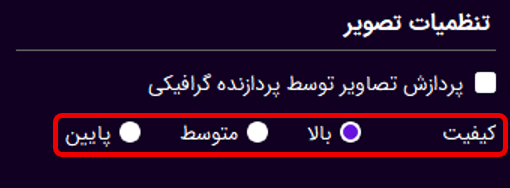
3) Playback Quality: If your device has a low-powered CPU or GPU and videos stutter during playback, you can lower the playback quality to reduce frame drops.
Audio Settings
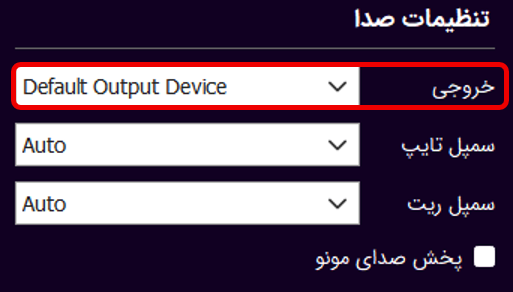
1) Audio Output: Change this option if you want audio to be played through a specific output device.
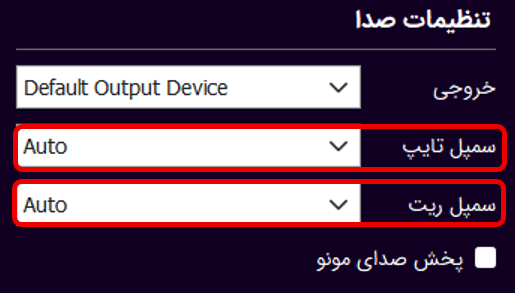
2) Sample Type and Sample Rate: These settings determine the audio format and sampling rate sent to the sound card. When set to Auto, the player attempts to obtain the optimal settings from the sound card. However, the sound card may report these settings incorrectly, which can cause audio playback issues. In this case, you can manually configure these settings according to your sound card.
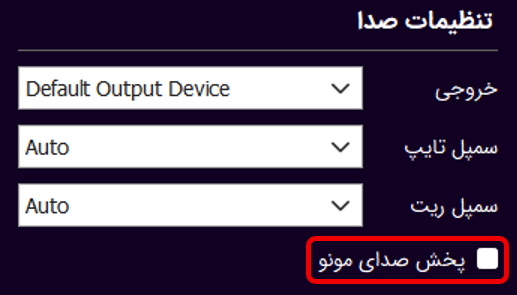
3) Mono Audio: Enabling this option converts stereo audio to mono and plays it through both speakers simultaneously.
Reset Application

Selecting this option will delete the application database and restart the application. Resetting the application will not delete any downloaded files.
Course Management
In the Course List panel, you can access all the courses registered in the application. The amount of storage space occupied by each course’s files on your device is displayed below each course.
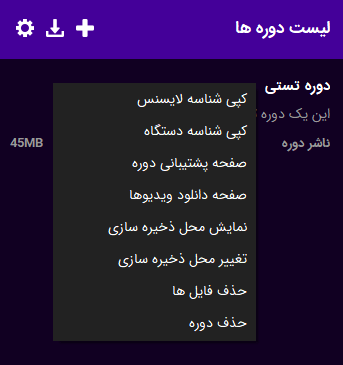
Right-clicking a course (or pressing and holding it on Android) will open the Course Management menu.
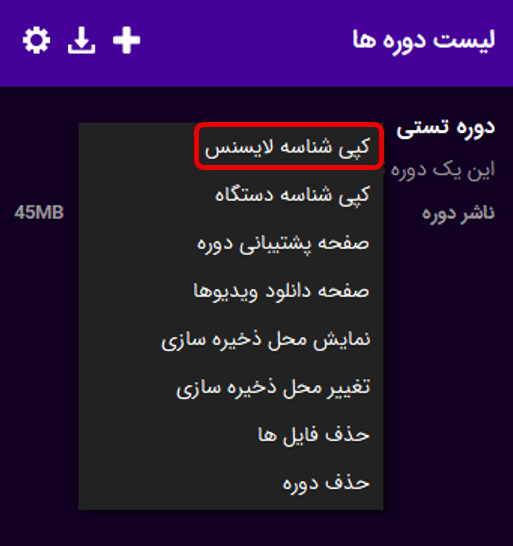
Copy License ID: Copies the license ID to the device clipboard. This is useful when support requests your license ID.
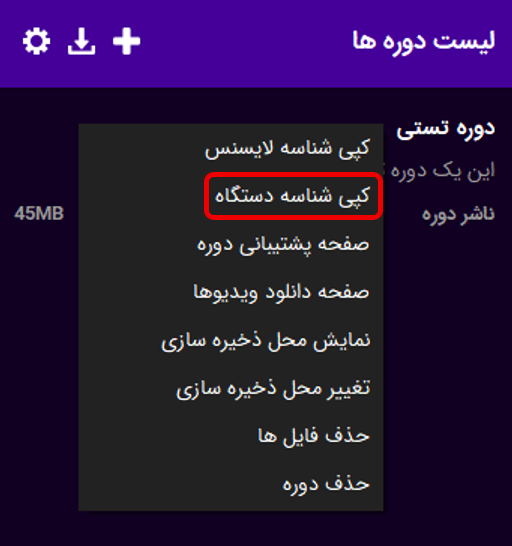
Copy Device ID: Copies the device ID associated with the license to the device clipboard. This is useful when support requests your device ID.
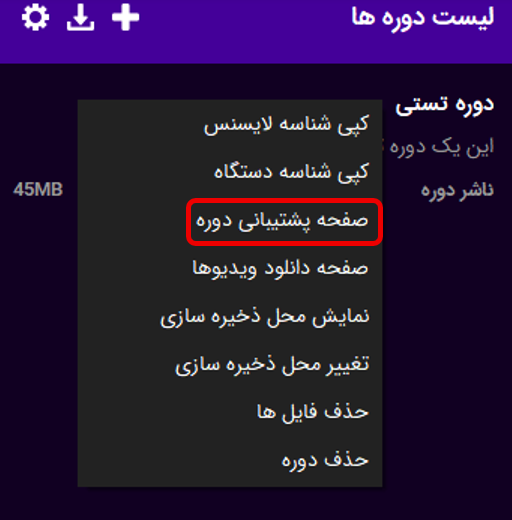
Support Page: Opens the course’s support page on the publisher’s website in your browser.
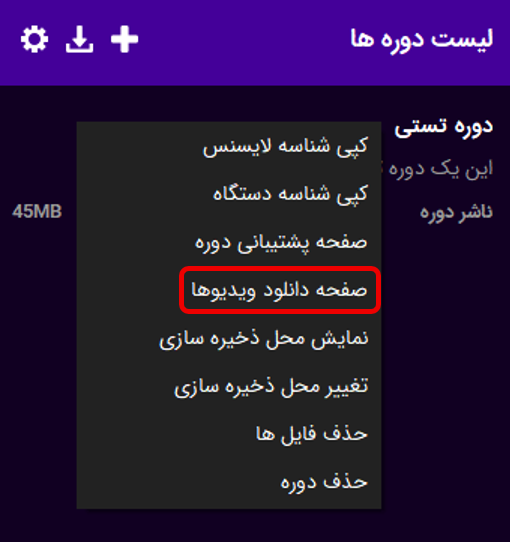
Download Page: Opens the course’s file download page in your browser. From this page, you can download individual course files using a download manager and transfer them to the course folder.
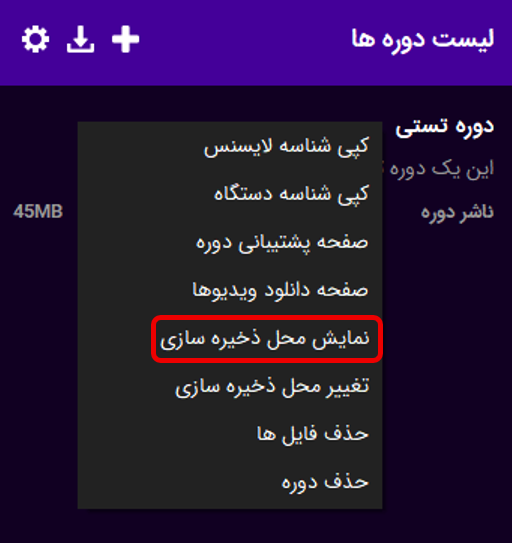
Show Storage Location: Opens the folder containing the course files in your operating system’s file manager.
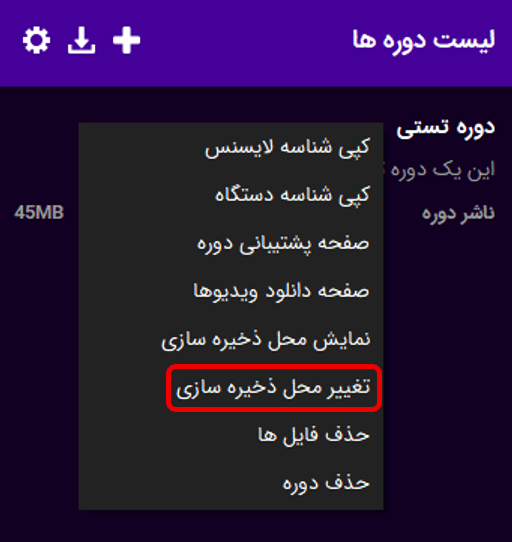
Change Storage Location: Use this option if you want to move the course to another drive or folder. Please note that changing the storage location does not move the files. You must move the files manually.
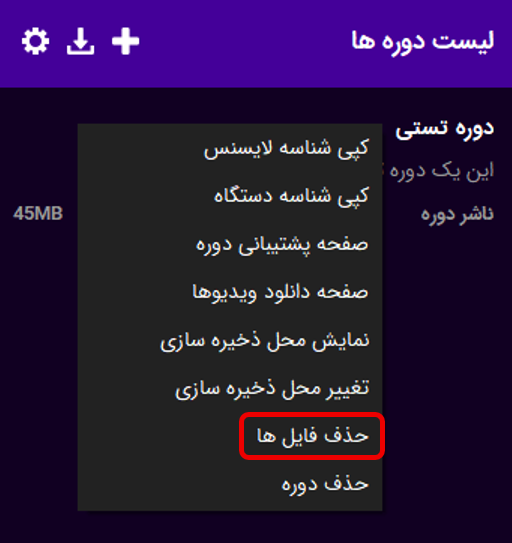
Delete Files: Deletes all files associated with the course from the storage drive. Please note that after deleting the files, they will need to be downloaded again when you access the course.
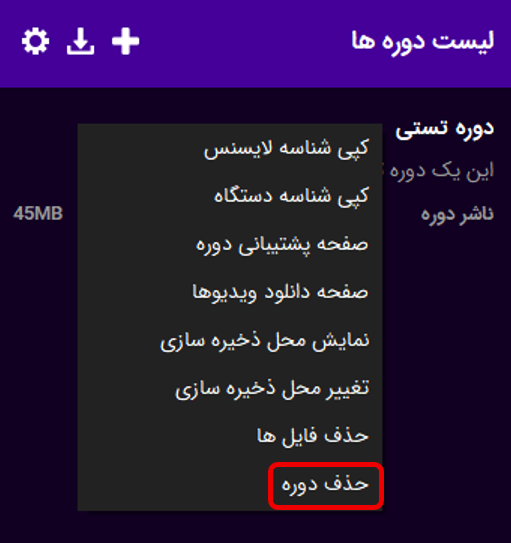
Remove Course: Removes the course from the application’s course list but does not delete its files. If you want to completely remove a course, first delete its files and then select this option.
File Management
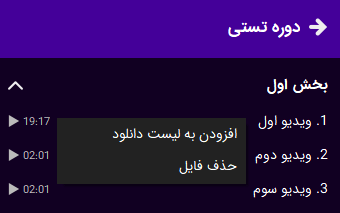
After opening a course, the list of course content will be displayed.
Right-clicking a file (or pressing and holding it on Android) will open the File Management menu.
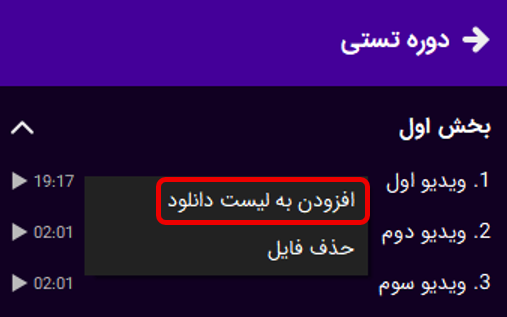
Add to Download List: Selecting this option will add the video file to the Nighttime Download list. For more information, please refer to the Nighttime Download Guide.
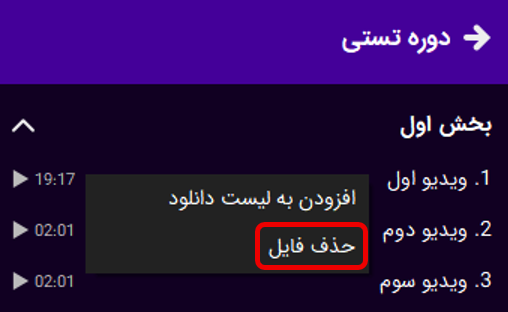
Delete File: Selecting this option will delete the file associated with this content from the storage drive.
Audio and Video Playback
Application Keyboard Shortcuts
Space: Play/pause video playback
Enter: Enter/exit full-screen mode
← / →: Seek backward/forward in the video
↑ / ↓: Increase/decrease volume
[]: Decrease/increase playback speed
General Errors
Network Errors: Below are some common network errors that may occur when registering or opening a course or downloading files. Most network errors are primarily caused by interference with the connection by firewalls or antivirus software, and secondly by issues with the internet service provider.
Error 3 – Host Not Found: This error occurs when the application cannot resolve the server’s IP address from its domain name. Please set your DNS servers to 8.8.8.8 and 8.8.4.4, Google’s public DNS servers, and try again.
Error 5 – Connection Timeout: This error occurs when a connection to the server cannot be established within 30 seconds. It is generally caused by a firewall, antivirus software, or an issue with your internet service provider. Please try again using a different internet connection. If the problem persists, check your firewall settings.
Error 6 – SSL Connection Error: This error occurs when the encrypted connection between the application and the server is being interfered with. In version 4 of the application, this error may occur on older devices where the Let's Encrypt root certificate expired on September 30. This issue has been fixed in version 5. If you receive this error in version 5, it is most likely caused by interference with the encrypted connection by your firewall or antivirus software.
Error 99 – Unknown Network Error: This error is generally caused by Windows Firewall or antivirus software blocking the application. Please temporarily disable your firewall first. If the problem is resolved, add the application to your firewall’s allowlist.